A field can be complete while the business process is still missing a step. Suppose a launch coordinator sets a project to Ready, but nobody has accepted its launch review. The safeguard needs to look at a related record and tell the coordinator what to fix.
This sandbox exercise uses two fictional custom objects: Launch Project and Launch Review. Each review looks up to one project and has a status of Draft or Accepted. A project can move from Planning to Ready only when at least one of its reviews is Accepted.
1. Run only when a project moves to Ready
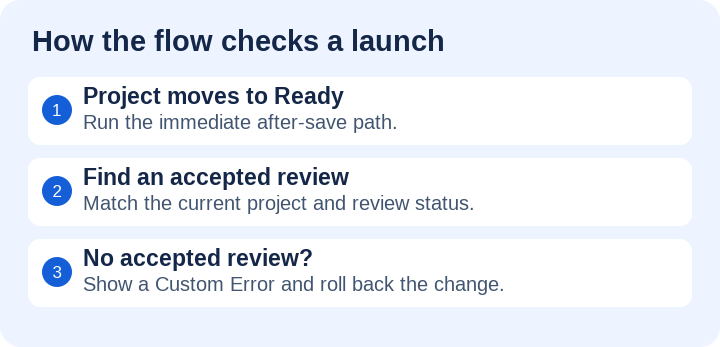
In Flow Builder, create a record-triggered flow on Launch Project. Trigger it on update, set Status equals Ready, and choose to run only when an update makes the record meet the condition. Optimize for Actions and Related Records and use the immediate path. This example checks the transition; it does not recheck every edit to a project that is already Ready. If users can create a project directly as Ready, cover creation separately or prevent that initial status.
For a simple rule based entirely on fields on the same record, start with a validation rule. Here the flow needs to find any qualifying child review. See the before-save versus after-save guide for the broader timing tradeoffs.
2. Find a qualifying review, then branch
- Add Get Records for Launch Review. Filter the project lookup to the triggering project’s ID and the review Status to Accepted. Store only the first matching record; existence is all you need.
- Add a Decision. If the returned review ID is null, follow the Missing Accepted Review outcome. Otherwise, end the flow without changing anything.
- On the missing outcome, add Custom Error. Use a record-page message: “Before setting this project to Ready, add an Accepted launch review for this project, then try again.” Adapt the message if users must request approval rather than edit reviews themselves.
3. Verify the error and the stored record
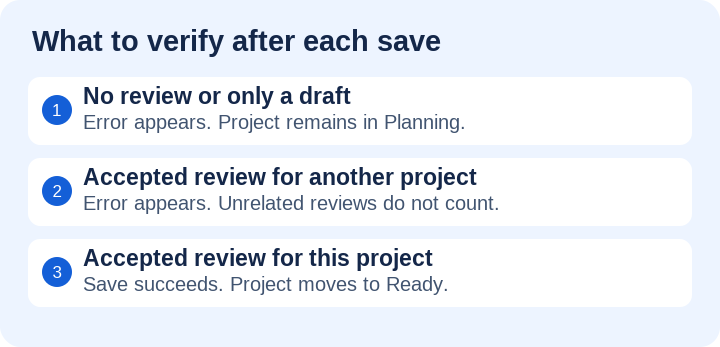
Use a sandbox and start each test with a project in Planning. Try saving Ready with no review, with a Draft review, and with an Accepted review linked to a different project. All three attempts should show the message. Reload after each attempt and check that the stored status is still Planning. Then add an Accepted review to the correct project and confirm Ready persists. Once it is Ready, edit an unrelated field and verify the transition check does not run again.
4. Decide what else the safeguard must cover
The Custom Error belongs on the synchronous before-save or after-save path of a record-triggered flow. It cannot run asynchronously or be called from another flow type. Salesforce limits the message to 255 characters. A record-page error fits this example because the user must fix a related record; an inline field error is available for suitable fields.
This flow checks the project at the moment it moves to Ready. It does not prevent someone from later withdrawing, deleting, or moving the only accepted review. If Ready must always imply an accepted review, design separate protections for those review changes. Test with representative users and through your import or integration path if it writes this status, because callers may surface save errors differently. Keep external side effects out of this guard; a database rollback is no guarantee that an outside system reverses work it already received.
Official Salesforce references
- Custom Error Element — supported paths, rollback, and message limits.
- Record-Triggered Flow Considerations — before-save and after-save behavior.