Sales Operations wants to move a group of reseller accounts from Jordan to Maya. Support should keep its Cases, and Lee should keep an open Opportunity on one of those Accounts. An Account handoff can change related owners and access, so start with one sandbox Account whose related records you can name and verify individually.
1. Write down what should move
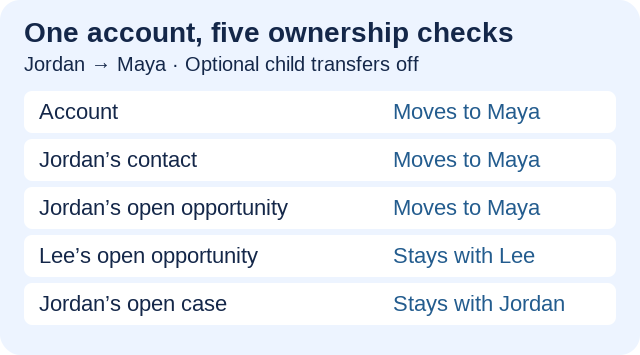
Create a fictional Account owned by Jordan, with a Contact and an open Opportunity that Jordan owns, another open Opportunity owned by Lee, and an open Case owned by Jordan. Give the Account a team member, and add an Opportunity Team member to Jordan’s Opportunity if your org uses teams. Record the IDs, current owners, team members, and any opportunity splits. Export or otherwise record the access grants that matter to the business, such as manual shares for a specialist.
For this pilot, retain the teams and leave the optional Case and extra Opportunity transfers off. Salesforce documents that Contacts and open Opportunities owned by the previous Account owner can move automatically as part of the Account transfer. The optional checkbox for open Opportunities owned by other users is a separate decision. Avoid assuming that leaving the optional boxes blank means only the Account moves.
2. Run the same transfer method you plan to use
- In Setup, open Mass Transfer Records and choose Accounts. Enter Jordan in Transfer from and Maya in Transfer to.
- Refine the filter so you can identify the sandbox Account unambiguously. Match the returned Account to the recorded ID before selecting it.
- Leave optional Opportunity and Case transfers off for this policy. Select Keep Account Team and Keep Opportunity Team where appropriate. Read the options on the actual transfer screen; closed Opportunities have separate team behavior documented by Salesforce.
- Run the transfer for that one Account. Compare each original ID against the expected owners above, then verify team membership and any relevant splits.
Mass Transfer handles up to 250 records at a time. If you choose a different method for a larger handoff, retest with that method. The Data Import Wizard versus Data Loader guide can help with tool selection, but a bulk update to Owner ID should not be assumed to reproduce the UI’s related-record options.
3. Test access as people, not just as an admin
Confirm that Maya can open the Account and act on the records she inherited. Then check that Lee can still work the open Opportunity and that a support user can open and update the Case as expected. Finally, make an explicit decision about Jordan’s remaining access: changing ownership does not by itself prove Jordan can no longer see the Account. If results differ, use the record visibility troubleshooting guide to check applicable sharing, hierarchy, and team access.
Check any process that expects an Opportunity owner change to trigger work. Salesforce notes that a cascaded Opportunity owner change from an Account transfer does not invoke Opportunity automation such as flows or Apex triggers. Test notifications, handoff tasks, and integrations directly rather than inferring that they ran from the new owner value.
4. Expand only after reconciling the pilot
Break production batches into clear ownership and option groups. Save a narrow list of selected Account IDs and the original child owners, team members, and splits you need to preserve. After each batch, reconcile the results against that list and stop on an unexpected transfer. Moving the Account back is another transfer, not a guarantee of restoring its previous teams, splits, or sharing.
Official Salesforce references
- Mass Transfer Records — selection, related-record options, and batch limit.
- Considerations for Changing a Record’s Owner — ownership cascades and automation considerations.