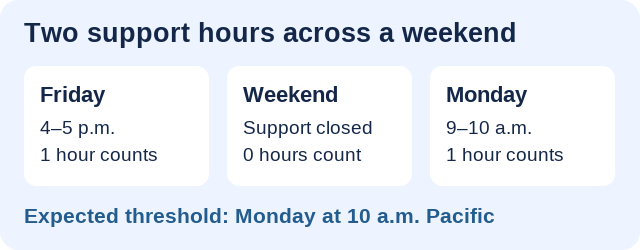
A high-priority Case arrives at 4 p.m. Friday. Support closes at 5 p.m. and reopens Monday at 9 a.m. If the team promises to escalate after two support hours, the expected threshold is Monday at 10 a.m., assuming no holiday. This walkthrough shows how to configure that policy and prove that routine edits don’t accidentally move the deadline.
1. Define the escalation before opening Setup
For this sandbox example, escalate open, High priority Cases after two support hours measured from Case creation. Reassign them to a test queue called Tier 2 Escalations. Use this pattern when the action is a Case reassignment or email notification. If you need a reminder tied to a changing follow-up date, compare the scheduled path Case reminder tutorial.
In Setup, create or verify an active Business Hours record for 9 a.m. to 5 p.m. Pacific, Monday through Friday, with weekends closed. Verify the time zone and the holidays associated with that record. Set up the test queue to support Cases, and keep its recipients limited to the sandbox test team.
2. Set the entry, clock, and action
- In Setup, open Escalation Rules. In your sandbox, identify the active rule and record its current entries. Salesforce supports one active Case escalation rule at a time, so plan to add a production entry to the existing rule if it already handles other Cases.
- Add an entry for open Cases with Priority set to High. Review where it sits relative to broader entries. Test a Case that could meet both entries and confirm that the intended policy is applied.
- Choose Set business hours and select the support calendar. Choose When case is created for the escalation clock. Use case-specific business hours instead only if the Case itself carries the calendar your policy should follow.
- Add an escalation action with Age Over set to two hours. Set the reassignment destination to the test queue. If testing notification as well, configure an appropriate template and verify delivery separately from ownership.
3. Test the weekend and the clock separately
For the weekend test, create an eligible Case at 4 p.m. Friday and keep it open. Expect one hour Friday and one Monday. Confirm that ownership stays put during the closed window and changes when Salesforce processes the action after the threshold. Compare the stored Case owner, not only whether an email arrived.
- Close before the threshold: Close a matching Case early. It should not be reassigned by this escalation.
- Edit without changing eligibility: Update an unrelated field while the Case stays open and High priority. For the creation-based clock, verify that the deadline still follows the original creation time.
- Check an excluded Case: Leave a Normal priority Case open. Verify it does not receive this entry’s Tier 2 action. It might still match another entry.
- Exercise a holiday: With Monday closed in the same calendar and Tuesday open at 9 a.m., the equivalent Friday Case should reach the threshold Tuesday at 10 a.m. Use a short closed window on a dedicated sandbox calendar for faster initial testing, then verify the real calendar too.
4. Watch for a clock that means something else
When case is created, and disable after case is first modified can suppress escalation after an ordinary edit. Based on last modification time instead measures from the latest edit. Neither proves that a customer received a response. If the policy is about first response rather than Case age, define what qualifies as a response and choose a mechanism that tracks that event explicitly.
Record the test Case number, calendar, clock option, predicted threshold, observed reassignment, and any notification result. If the outcome differs, check entry order and eligibility, the calendar’s time zone and holidays, and other automation that changes ownership. For a separate way to measure how many Cases remain open week to week, use Case backlog reporting snapshots.