Two EUR Opportunities have the same Amount, but their USD totals differ. Before changing the rate table, compare their Close Dates and confirm which currency the report displays. With Advanced Currency Management, an Opportunity can cross into a different dated rate range even when its original Amount stays the same.
1. Make the conversion easy to check
Use a sandbox where multiple currencies and Advanced Currency Management are already enabled, with USD as corporate currency and EUR active. Use a USD test user, or a report that displays converted values in USD, to keep personal currency from adding a second conversion. Treat the rates below as fictional and use a test period approved by your team. Enabling Advanced Currency Management in production is a separate decision: check formulas, reports, and existing roll-ups first.
2. Add two dated rates and test the boundary
- In Setup, open Manage Currencies → Manage Dated Exchange Rates. Review existing ranges around the test period. Set January 1 to a rate of 0.96 EUR per USD and February 1 to 1.00 EUR per USD using New Exchange Rates where no entry already exists. Leave other currencies blank if you don’t intend to add rates for them.
- Create two EUR Opportunities with an Amount of EUR 9,600. Use January 31 as the first Close Date and February 1 as the second, both in the year of the rate entries. Keep all other relevant fields the same.
- Run an Opportunities report that includes Close Date, record currency, original Amount, and the converted Amount in USD. Check the two rows individually before comparing a total. If either row is missing, inspect report filters and scope; the custom report types guide covers how the report type affects the available rows and fields.
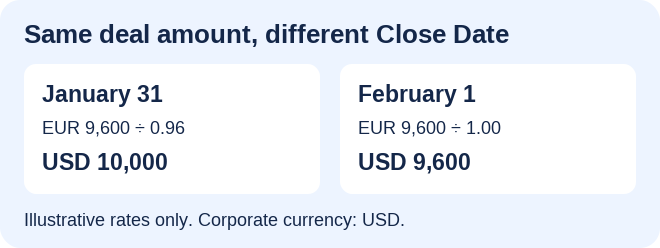
Move the first Opportunity’s Close Date to February 1 and rerun the report. Its converted Amount should now match the other row. Confirm that its local EUR Amount did not change. This isolates the rate boundary from changes to stage or deal value.
3. Investigate a number that still looks wrong
Start by recording the record currency, Close Date, report display currency, dated rate and expected amount. Check the direction of the rate: if one USD buys 0.96 EUR, convert EUR back to USD by dividing by 0.96. If the viewer uses a different personal currency, Salesforce’s documented conversion goes through corporate currency first. Compare in USD before investigating any second conversion.
Check what is producing the number. Dated rates apply to supported Opportunity records and related reports, but Salesforce lists forecasting, currency-returning formula fields, and unrelated objects and reports as exceptions. Cross-object currency formulas use static conversion rates. Salesforce also restricts currency roll-ups from Opportunities to Accounts when Advanced Currency Management is enabled. Compare supported Opportunity fields directly before treating a formula or an Account total as a control.
4. Preserve the number Finance signed off on
A live converted report is a calculation from the current configuration and record inputs. Editing an earlier dated rate or changing a Close Date can change a previously reviewed result. If Finance needs a point-in-time number, agree on the approved rate source and a retention process. The reporting snapshots tutorial explains how Salesforce can capture report results on a schedule; verify the exact currency value and field mapping before adapting that pattern for financial reporting.
Official Salesforce references
- About Advanced Currency Management — date ranges and supported uses.
- Edit Dated Exchange Rates — Setup steps and the conversion sequence.