A support manager says a Salesforce notification never arrived. The automation appears to have run, and sending it again might produce a duplicate. Start by collecting evidence for one message rather than changing the Flow, sender settings, and mail policy at the same time.
This walkthrough uses a fictional Case notification to a controlled test mailbox. It does not require access to the customer’s inbox. Use an authorized admin to retrieve logs: Salesforce lists Modify All Data as the permission required to access them. Don’t add that broad permission to an end user merely so they can investigate one email.
1. Make a small, traceable test
Write down the Case ID, the intended recipient address, the action that should send the message, and the test time with its time zone. Confirm the actual address used by the automation rather than relying on the contact’s display name. Use a synthetic Case and an approved test recipient for any repeat test.
Check that the notification was supposed to run. For a Flow, inspect its entry conditions, relevant decision outcome, active version, and any failure evidence. The Flow fault path guide helps when an action fails before delivery. If the missing message is a report subscription, first check its qualifying conditions and recipients using the report subscription walkthrough.
2. Request a focused outbound log
- In Setup, open Email Log Files and choose Request an Email Log.
- Select a start and end time that bracket the test. Record how the chosen window relates to your test’s time zone. Requests cover email within the past 30 days, with no more than seven days in one request.
- Filter to the test address and choose outbound direction. Include all mail event types for the initial investigation so you can see failures as well as successful handoffs.
- Use an approved notification address for the completed request. Download the resulting log and keep it in your organization’s restricted troubleshooting location.
The export contains delivery metadata and addresses, so share only the relevant rows with the people investigating the problem. Avoid posting an entire org-wide log in a general support thread.
3. Follow the message’s events
Find the recipient and correlate the relevant message identifiers and timestamps. A single message can have more than one event, so do not count each row as another email. Use Salesforce’s Email Log Reference to interpret the fields and any error text.
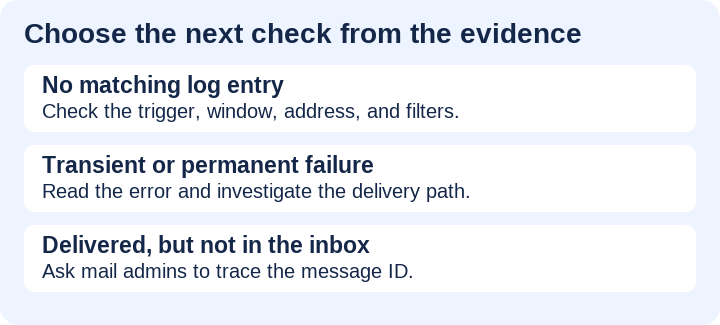
- No match: Recheck the time window, actual recipient, direction, and filter. Then return to the automation evidence. A missing row alone is insufficient to prove the automation never sent anything.
- Transient failure: Read the error and identify whether the remote server temporarily deferred the message. Check later events before treating a temporary condition as final or sending another copy.
- Permanent failure: Preserve the error details and check the address and receiving-domain response. Route the evidence to the team responsible for that delivery path.
- Delivered: Check whether this corresponds to the exact test message. If the user still cannot find it, proceed to a recipient-side trace.
4. Hand off a useful mail investigation
Salesforce documents that a delivered status can reflect acceptance by the recipient’s server even when the email does not appear in the mailbox. Give the recipient’s mail administrator the message ID, recipient, sender information from the relevant row, and timestamp with time zone. Ask them to inspect message tracing, quarantine, filtering, and routing for that message.
For the test, success means the expected message is both traceable through the log and found in the approved mailbox. Record the outcome and the next owner in the support ticket. If domain authentication needs investigation, let the responsible mail and DNS administrators review the configuration with the evidence; avoid changing DNS as a speculative fix for one missing notification.
Limits to keep in mind
Email logs are a troubleshooting aid, not a complete audit record. Salesforce warns that data can be incomplete, so combine the export with automation evidence and the receiving system’s trace. Request logs promptly and retain the necessary evidence under your team’s policy. A successful send action, mail-server acceptance, inbox placement, and a person reading the email are different outcomes.